en
en


Recognizing the “No Location Found” Notification
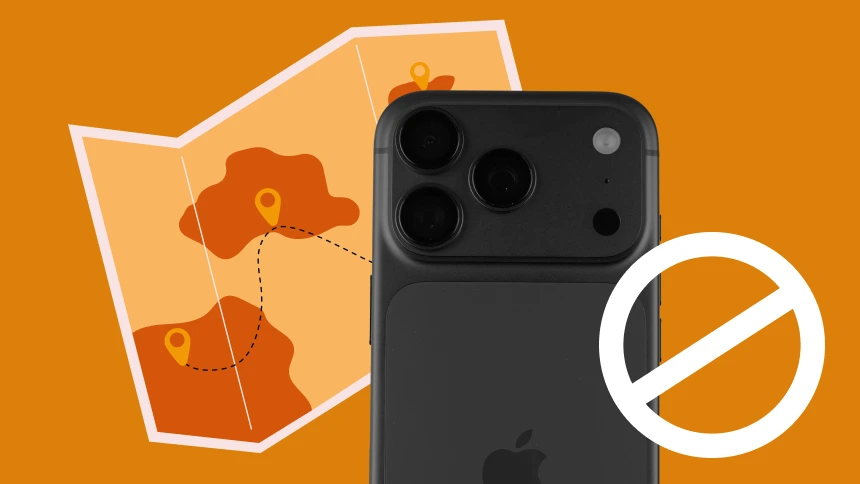
The “No Location Found” notification often shows in Apple’s Find My app or when using iMessage location sharing. This means your device (or other person’s device) cannot determine or communicate its location at the time.
This does not always mean something is wrong, as it can be a temporary issue with your internet connection, device settings, or Apple’s servers. On the other hand it could indicate problems relating to privacy, permissions, or even intentionally hiding the location.
The Difference Between “No Location Found” and “Location Not Available”
While users viele times compinde the two error messages they are actually saying different things:
“No Location Found” – The app can’t find any location for the device at all. That normally indicates technical issues such as no GPS signal, no internet, and/or a powered off device.
“Location Not Available” – Location is being withheld on purpose. That is typically done when a user has stopped sharing their location or turned off location services.
It is important to know the difference. One is mostly technical; the other can be an intentional act.
Common Reasons You See “No Location Found”
Let’s explore the most common causes behind this error message.
| Reason 1. | No Internet Connection. Apple’s Find My requires Wi-Fi or cellular data to send location information. Without internet, a location can’t be sent. Poor coverage or Airplane Mode can limit connectivity. |
| Reason 2. | Location Services is Disabled. If location services are not turned on for the device, the Find My app can’t track it. Without access to GPS, Apple’s system does not know where the device is. |
| Reason 3. | Outdated Software. An outdated iOS or macOS version may create compatibility issues and errors with Find My. Apple frequently releases bug fixes which will improve tracking/locations. |
| Reason 4. | Incorrect Time and Date Settings. It may seem small, but if the device’s time zone or date settings are wrong, it can limit the ability to communicate with Apple’s servers. |
| Reason 5. | Device is powered off or the battery is dead. If a device is powered off, or the battery has completely drained, Find My will not be able to provide a live location. Instead, it will show the last known location (if available). |
| Reason 6. | iCloud or Find My not activated. If a user has not enabled Find My in iCloud settings, Apple will not be able to track that device. |
| Reason 7. | Privacy limits. There are also instances in which users are intentionally adjusting their privacy and share settings which could block sharing location updates. These can lead to some confusion if someone thinks to expect updated locations but continues to receive “No Location Found.” |
| Reason 8. | VPNs or masking network access. Depending on the connection routing, VPNs, proxies, or privacy guards may occasionally interfere with live location tracking. While VPNs are great for protections for privacy, it is possible for apps to have issues. It may allow an app to display an error, like “No Location Found.” |
How to Fix the “No Location Found” Error
Now that we know why the message appears, let’s look at practical solutions.
1. Check Internet Connection
Ensure that your Wi-Fi or cellular data connection is turned on and working properly. If one connection is failing, switching may help.
2. Enable Location Services
- Go to Settings > Privacy & Security > Location Services.
- Confirm that Location Services are turned on.
- Confirm that Find My has access to location.
3. Turn On Share My Location
- Go to Settings > [Your Name] > Find My.
- Ensure Share My Location is enabled.
4. Restart the Device
Restarting a device and giving it a fresh start can sometimes resolve temporary glitches and return the device to its original intended operation.
5. Update iOS
Newbie features and bug fixes can be a few of the most important reasons to keep a device regularly updated.
6. Check Date & Time Settings
Be sure Set Automatically is on under Settings > General > Date & Time.
7. Re-enable Find My
- Go to Settings > [Your Name] > Find My iPhone.
- Toggle it off, then on.
8. Log Out and Back Into iCloud
Refreshing your iCloud account may correct any syncing issues.
9. Disable Low Power Mode
Low Power Mode can also restrict even background activity on your device, including location sharing.
When “No Location Found” Might Be Intentional
While many causes are technical, sometimes the message is deliberately triggered. For example:
- A user has turned off Share My Location in their settings. Airplane Mode is enabled to block tracking.
- A VPN is masking or rerouting network data.
- Location Services were turned off for privacy reasons.
If you consistently see “No Location Found” for a specific contact, it may mean they don’t want to share their location at that moment.
How VPNs Affect Location Sharing
VPNs are an excellent privacy tool, but there can be a feature, or aspect of a VPN that can be problematic for other apps, such as location apps like Find My. Here’s a breakdown:
- IP Masking: The service that a VPN offers with masking your actual IP address can be confusing for some location services.
- Encryption: The encryption of the VPN offers security to the data transmitted, but could slow down required communication between the device and the server
- Location Change: When using a VPN it is possible that the geographic area of the VPN is in another country, and this could confuse what the apps are looking for when calculating your location.
To clarify, the use of a VPN does not restrict GPS location tracking. Apple Find My uses GPS and cell signals primarily, so the app does not use as many IP signals. Nonetheless, there will be times that the app may delay the signal or may produce errors.
Real-World Scenarios of “No Location Found”
To put things in context, here are a few typical case studies:
- Family Tracking: A parent is trying to determine their child’s location, and the phone is turned off, so all they see is “No Location Found.”
- Meeting Friends: Two friends are using their location data share, but one of them is in a rural area and has weak cell service which creates errors.
- Lost Device: A lost or stolen iPhone appears as “No Location Found” if the thief turns off the device or turns off Find My.
- VPN Safety: A VPN user is seeking to browse while using a VPN, and may experience temporary “No Location Found” warnings but all the phone is working fine.

How to Avoid Seeing “No Location Found” in the Future
Here are some proactive tips to reduce the chances of encountering this message:
| 1. | Keep devices charged and connected to the internet. |
| 2. | Enable Location Services and Find My in advance. |
| 3. | Share your location only with trusted contacts. |
| 4. | Use VPNLY for secure browsing without interfering with device functions. |
| 5. | Regularly update your iOS software. |
Is “No Location Found” a Privacy Feature?
In some respects, yes. In fact, seeing this message may help protect users’ privacy. If someone does not want to be tracked, Apple allows a user to switch sharing off which shows this exact error. This helps with the balance of convenience and privacy – while Find My is powerful, it respects a user’s right to control who sees their location.
Final Thoughts
Finding the message “No Location Found” is a frequent occurrence within Apple’s ecosystem, which can be annoying, but it usually has a straightforward answer. It’s typically a connectivity issue, device settings, or privacy controls issue on the user’s part, though sometimes, it can be actively turned off by the user.
Checking your internet access, enabling location services, better ensuring your devices are using the most up-to-date software version, and verifying Find My is set properly will usually remedy the problem. If you are utilizing a VPN service, ensure to use a trustworthy service so that location sharing isn’t interrupted.
Stay Protected with VPNLY
No matter if you’re sharing your location with family and friends or just surfing the web, always remember that privacy and security come first and foremost. Apple’s tools already work to protect your device, but there are ways your online activity can still be exposed unless you start adding extra layers of security.
That’s where VPNLY comes into play. VPNLY allows users to encrypt your internet traffic, hide your true IP address, and protects you from unwanted snoopers to ensure your online life is private and secure – all while letting you use any of essential applications that enable services such as Find My.
Be in charge of your privacy now – try VPNLY and get secure, fast, and reliable online protection.