en
en

Why Location Sharing Might Not Work
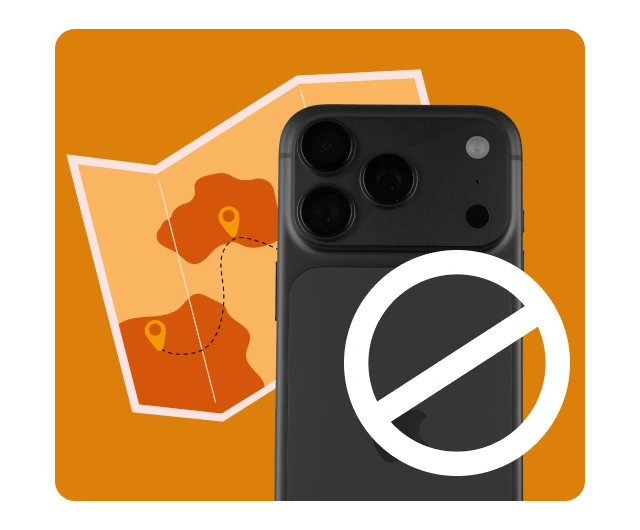
Problems with location sharing on your iPhone may be caused by software, settings, and privacy constraints. The usual suspects include:
- Location Services settings – If Location Services is turned off, applications will be unable to access your GPS data.
- Restrictions to the app – Some apps need explicit permission to follow your location.
- Network settings – Wi-Fi or cellular service connections may be weak and limit location sharing.
- Software bugs – New iOS updates may come with software bugs affecting GPS accuracy.
- Privacy restrictions – Screen Time or another type of parental controls may be blocking location sharing.
Recognizing what category your issue belongs to will help you with a solution.
How to Check Your Location Services Settings
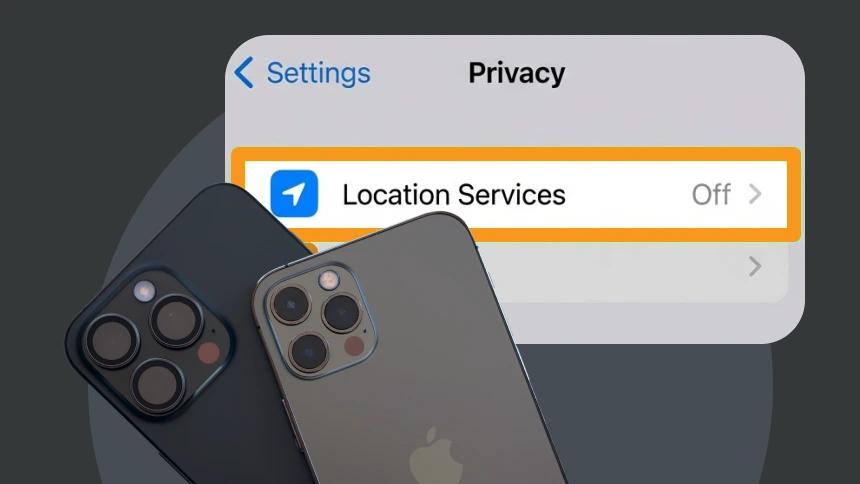
Location Services is the main system-level feature controlling whether apps and contacts can access your location.
- Open Settings on your iPhone.
- Go to Privacy & Security → Location Services.
- Make sure Location Services is turned on.
- Scroll down to individual apps and check that each app you want to share your location with has While Using the App or Always selected.
If these settings are off, your iPhone will not share your location, even if you attempt to send it via Messages, Maps, or Find My.
Checking App Permissions
Applications must normally ask for their own permission to access your location even if Location Services is turned on.
- Open Settings → Privacy & Security → Location Services
- Select the app you want to share your location with
- Ensure adequate permissions are granted.
For instance, to update your location in real-time, Find My requires full access. Likewise, messaging apps like WhatsApp or iMessage will require While Using the App access to share your location with friends.
Network and Connectivity Issues
Your iPhone can find your location through Wi-Fi networks, cellular data networks, and GPS satellites. If your Wi-Fi, cellular data, or GPS satellite connections are weak, location sharing can fail.
If you are not sharing your location, please Check
- Wi-Fi connection/cellular connection – Make sure your device is connected to the internet.
- Location Services for Wi-Fi and Bluetooth must be turned on, these improve location accuracy
- Power Cycle your iPhone, this resets the GPS and Network coverage
In some situations, if you are indoors or have low GPS reception, your location could update inaccurately or may even stop sharing your location temporarily.
Software Updates and Bugs
iOS updates are meant to add capability but may also include bugs that affect location services.
- Future updates will fix errors that occurred with earlier updates, so be sure to check for updates: Settings → General → Software Update.
- If the iPhone is updated and problems persist, a restart or reset network settings may help.
- If problems continue, consider contacting Apple support or visiting an Apple Store.
Privacy Restrictions and Screen Time
Parental controls and Screen Time settings can restrict location sharing.
- Open Settings → Screen Time → Content & Privacy Restrictions.
- Go to Location Services and ensure permissions are not restricted.
- For children’s devices, parents may have disabled location sharing for safety.
Once your iPhone is working correctly, it’s important to consider how to share your location safely:
- Use built-in apps like Find My or iMessage for trusted contacts.
- Only enable location access for apps you trust.
- Regularly review app permissions in Settings → Privacy & Security → Location Services.
This ensures that you are sharing your location intentionally and only with people or apps you trust.
Why You Should Use a VPN on iPhone
Even when location sharing works correctly, your online activity can still expose your real IP address and approximate location. VPNs add an extra layer of privacy:
- Hides your IP address – Makes it harder for websites or apps to track your real location.
- Encrypts your internet traffic – Protects your data on public Wi-Fi.
- Enhances overall privacy – Limits tracking by advertisers and third parties.
VPNLY: Recommended for iPhone Users
VPNLY is an ideal choice for iPhone users who want to protect location data and online privacy:
- No-logs policy ensures your activity isn’t tracked.
- High-speed servers prevent slowdowns when using apps.
- Multi-platform support, including iOS, ensures consistent protection across devices.
- Protection against IP and DNS leaks, making your location more secure.
With a VPN like VPNLY, you can safely use location-based apps while maintaining your privacy.
Troubleshooting Common Location Sharing Issues
Restarting Location Services
- A simple restart of Location Services can often solve most issues:
- Go to Settings → Privacy & Security → Location Services.
Turn off and back on Location Services
- Test whether location sharing works again in iMessage or Maps.
- Resetting Network Settings
Misconfigured network settings can impact GPS
- Settings → General → Transfer or Reset iPhone → Reset → Reset Network Settings.
- Note: You will lose your saved Wi-Fi password, so be prepared to reconnect.
Checking Your Date and Time Settings
- If your date and time are incorrect, this can affect GPS:
- Go to Settings → General → Date & Time.
- Turn on Set Automatically.
Reinstalling Apps
If a specific app can’t access your location:
- Delete the app.
- Reinstall it from the App Store.
- Grant location permissions when prompted.
Additional Privacy Tips
- Limit background location access for apps that don’t need it.
- Regularly review location history in Settings → Privacy → Location Services → System Services.
- Avoid sharing your location in public social media posts.
- Use a VPN whenever connected to public Wi-Fi to prevent location tracking.
When to Contact Apple Support
Should none of the above suggestions work, you might have an issue with the hardware in the GPS, or a more serious issue within the software. You can contact Apple Support if any of the following seem true:
- Your location services fails for all apps.
- Your iPhone gives incorrect GPS data consistently.
- You cannot share your location with someone, even after resetting both the network settings and the permissions.
Technicians at Apple can run some diagnostics, and if your hardware problem persists can repair or replace your device.
Conclusion
Having issues sharing your location on iPhone can be frustrating. Most problems usually have a few causes: location settings, network-related issues or privacy restrictions. Typically, by checking location services, checking app permissions, checking your network connection, and ensuring the software is up to date, most problems will resolve.
In addition to normal procedures, if you want an extra layer of protection, using a VPN like VPNLY will keep your location and online activity safe, even on public wifi networks. When you combine proper iPhone settings and a VPN, you can ensure your digital footprint won’t be visible, maintaining privacy. This also gives you control over who sees your location, while you are able to confidently share your location when you’d like.
With these actions, you can be sure your data is safe from unwanted tracking.