en
en

Why clear the iPad cache?
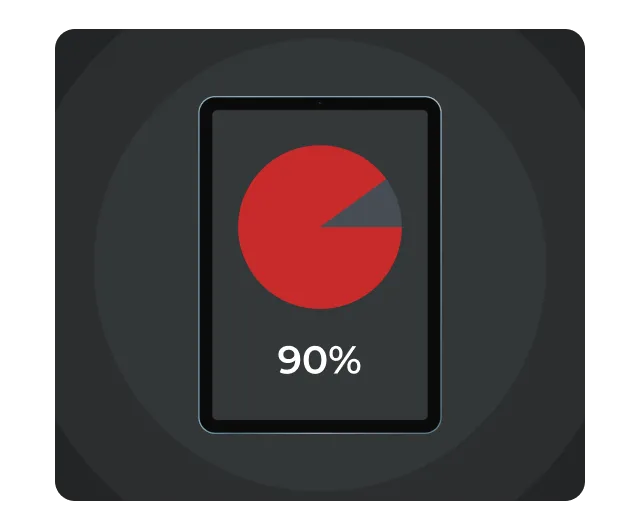
When you use browsers and apps, they store temporary files: images, styles, scripts, cookies. It’s convenient – pages load faster and sites ‘remember’ you.
But over time:
- Your device starts to slow down
- Memory fills up
- Application errors appear
- Privacy is compromised – cookies track behaviour
How often should I clear the cache on my iPad?
It is recommended to clear cache and cookies every 1-2 months or more often if:
- iPad starts to run slowly.
- Pages or apps are not loading.
- You experience errors when accessing websites.
- Running out of free space.
What is important to consider when clearing?
Clearing your cache in Safari, Chrome, and Firefox is important. It helps your computer run faster and more efficiently. It also protects your privacy and makes sure websites load in their latest version.
Before you delete the cache:
- You’ll be logged out of some accounts if you delete cookies.
- Autofill and history may be erased, especially in Safari.
- Make sure you have logins and passwords for important services.
Clearing cache and cookies in Safari
- Safari is the default browser on iPad. To clear the cache:
- Open Settings > Safari
- Scroll down and tap Clear history and site data
- Confirm the action
This will remove history, cookies, cached files and logins from sites.
Clearing cache and cookies in Chrome on iPad:
- Open Chrome
- Click the three dots on the top right
- Go to History > Delete browsing data
- Select a period (for example, ‘all time’)
- Tick the ‘Cached images and files’ and ‘Cookies’ boxes
- Click Delete Data
Clearing cache and cookies in Firefox
- Open Firefox
- Click on the three bars at the bottom
- Go to Settings > Data Management
- Tick Cache, Cookies, and other items as needed
- Click Delete Data
- Clearing app cache and data
There’s no direct way to clear the app cache on your iPad, but you can:
- Uninstall and reinstall an app
- Go to Settings > Basic > iPad Storage
- Find the app you want
- Tap Uninstall the app, then reinstall it from the App Store
- Use the app’s Offload feature
- In the same section, select Unload app
This will remove the cache but keep your documents and data intact
Clear System Cache
The system cache is partially cleared when you reboot your iPad:
- Press the power and volume button.
- Switch off the device using the slider.
- Switch it back on.
The system cache can only be completely cleared with a factory reset, but this deletes all data, so be sure to make a backup before doing so.
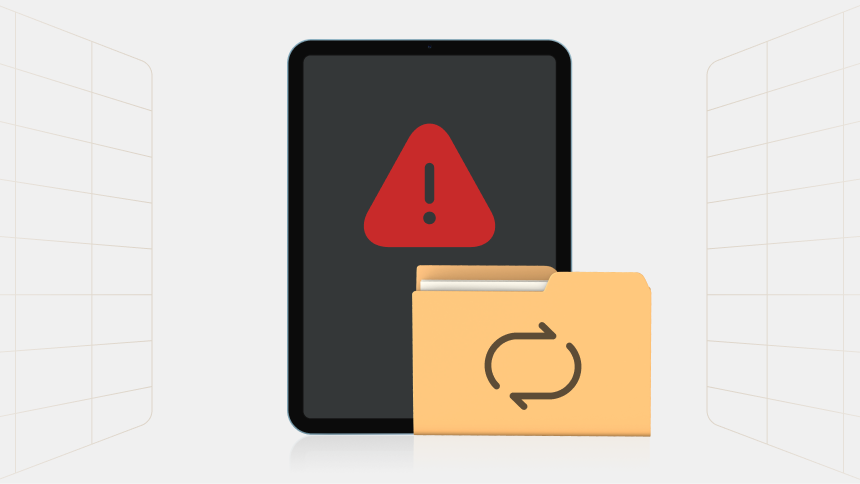
Although cache speeds up performance, storing it for too long can:
- Fill up memory.
- Slow down your device.
- Cause application conflicts.
- Threaten privacy: cookies track actions.
How to protect your privacy?
Clearing the cache is a step towards a fast and stable iPad, but it doesn’t protect you online. Browsers and apps continue to collect information: location, searches, actions. Use a VPN from VPNLY
To keep yourself safe, use VPNLY:
- Secure traffic encryption
- IP and location hiding
- Protection from tracking by websites and apps
- Bypass blocking and regional restrictions
- Simple interface and fast speed
- VPNLY is available for iPad and iPhone from the App Store. One-touch connection.
Conclusion
Clearing the cache on iPad is an effective way to speed up your device, free up memory and eliminate errors. Safari, Chrome, and Firefox allow you to quickly delete temporary files. It’s also important to keep an eye on your app cache and reboot your device from time to time.
And don’t forget: for complete privacy, use a VPN. VPNLY is your trusted assistant in digital security.